From invite links to join approvals: growing your group
Invite links that preview in chat apps, usage and expiry limits, screening join requests with batch approval, and how owner, admin, and member roles divide the work.
· five:hours
Group created — time to bring people in. Invites in Bulsee are designed to end with "one link": wherever you paste it — group chat, Instagram bio — becomes your recruiting channel. Part 2 of the deep-dive series covers invite links, approval screening, and how roles work.
One invite link does it all
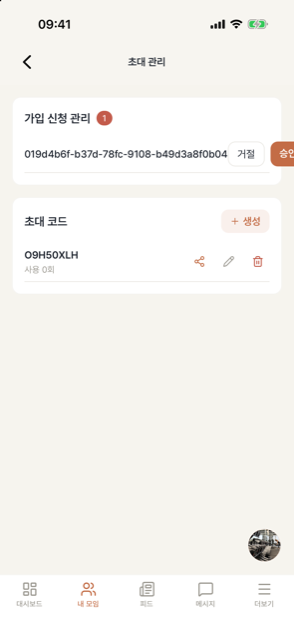
Create an invite from the group management screen and you get a link like eda.fivehours.co/invite/CODE.
- Paste it into KakaoTalk or Slack and a group preview (name, image) renders with it.
- People with the app installed tap the link and land directly on the join screen in the app.
- People without the app can preview the group and join on the web.
If you recruit through SNS — say a dance class — putting the invite link in your Instagram bio replaces "DM me to sign up" entirely.
Usage and expiry limits
Invite links can carry a maximum use count and an expiry date — handy for "this cohort's recruiting window only" or "first 10 people". If a link leaks further than intended, revoke it anytime and issue a new one.
Approval groups: reviewing join requests
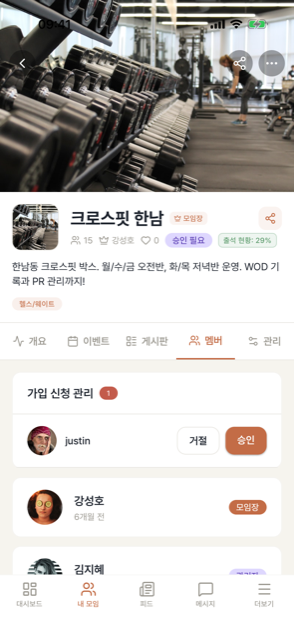
With the approval join type, applicants leave a join request message and admins review the queue.
- Ask applicants to include what you need to decide — "why do you want to join", "your child's name" — and screening gets easy.
- When requests pile up (new-semester club recruiting), use batch approve/decline.
- Results are delivered to applicants automatically, and their app shows a "pending approval" state — fewer "did I get in?" questions.
Roles — owner, admin, member
| Role | Can do |
|---|---|
| Owner | Everything + role changes, ownership transfer, deletion |
| Admin | Create events, manage attendance, screen join requests, edit settings |
| Member | Join events, check in, write posts |
Give admin to the people who help you run things (instructors, vice-presidents, treasurers) and attendance and screening keep moving without the owner. Ownership itself can be transferred during handovers.
Once someone joins
New members get a welcome notification automatically, and each member can set a separate nickname and profile photo per group — real name in the company club, stage name in the hobby group, one account throughout.